
Table of Contents
ToggleHardware techniques can make or break a computer’s performance. Whether someone owns a gaming rig, a workstation, or a basic home PC, understanding how to optimize, maintain, and troubleshoot physical components directly impacts system speed and lifespan. Many users focus solely on software solutions while ignoring the hardware sitting inside their machines. That’s a mistake. The right hardware techniques reduce overheating, prevent premature failures, and squeeze extra years out of expensive equipment. This guide covers practical methods, from thermal management to component upgrades, that help anyone get more from their hardware investment.
Key Takeaways
- Effective hardware techniques like thermal management and regular cleaning can extend your computer’s lifespan and prevent performance issues.
- Replace thermal paste every two to three years to potentially reduce CPU temperatures by 10-20°C and avoid throttling.
- Clean your PC every three to six months using compressed air to remove dust that clogs fans and heatsinks.
- Upgrade RAM to 16GB or 32GB for smoother multitasking, and switch to an SSD for dramatically faster boot times.
- Use monitoring tools like HWMonitor or Core Temp to identify bottlenecks and catch overheating problems early.
- Learn basic troubleshooting hardware techniques—such as running MemTest86 or checking debug LEDs—to diagnose issues before calling a professional.
Understanding the Basics of Hardware Optimization
Hardware optimization starts with knowing what’s inside a computer and how each part contributes to overall performance. The CPU handles calculations, RAM stores active data, storage drives hold files, and the GPU renders graphics. Each component has limits, and pushing them too hard without proper care leads to slowdowns or damage.
Effective hardware techniques begin with monitoring. Tools like HWMonitor, Core Temp, or built-in system utilities track temperatures, clock speeds, and resource usage. These readings reveal bottlenecks. A CPU running at 95°C constantly signals cooling problems. RAM usage sitting at 100% suggests an upgrade might help.
BIOS and UEFI settings also play a role in hardware optimization. Users can adjust fan curves, enable XMP profiles for RAM, or tweak power delivery settings. These changes require caution, wrong settings can cause instability, but they offer significant performance gains when done correctly.
Another foundational hardware technique involves understanding airflow. Hot air rises, so cases work best with intake fans at the bottom or front and exhaust fans at the top or rear. Poor airflow forces components to throttle their speeds, reducing performance even when the hardware itself is capable of more.
Thermal Management Techniques
Heat kills electronics. Thermal management stands as one of the most critical hardware techniques for anyone serious about system longevity. High temperatures degrade components over time, cause throttling, and lead to unexpected shutdowns.
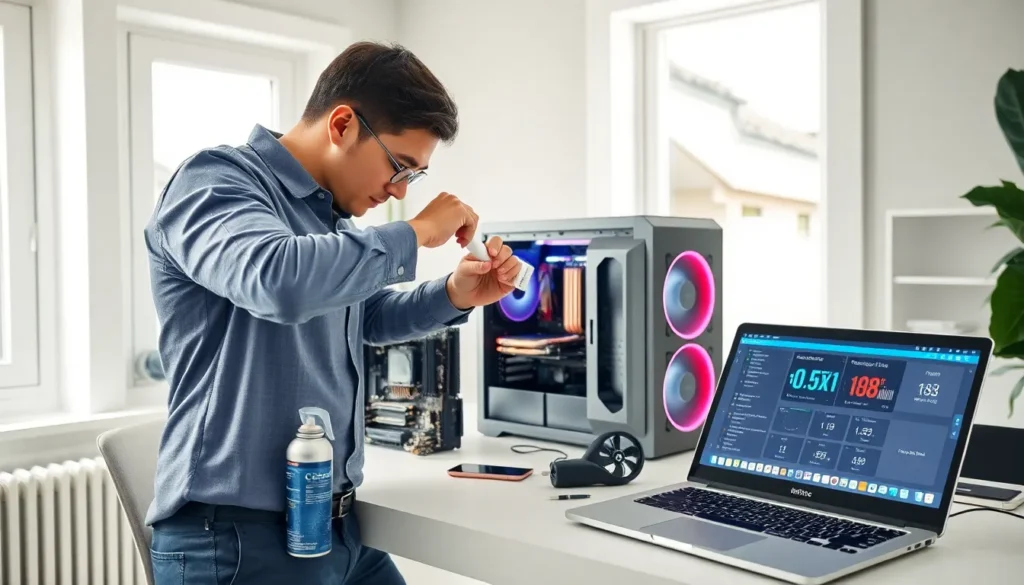
Thermal paste application matters more than many realize. This compound fills microscopic gaps between the CPU and its cooler, improving heat transfer. Old or poorly applied thermal paste acts as an insulator instead of a conductor. Replacing it every two to three years, or when temperatures climb unexpectedly, can drop CPU temps by 10-20°C.
Cooler selection depends on workload and case size. Stock coolers handle light tasks but struggle under heavy loads. Tower coolers with heat pipes offer better performance for moderate use. All-in-one liquid coolers excel in high-performance builds where air cooling can’t keep up.
GPU thermal management deserves attention too. Graphics cards often run hotter than CPUs during gaming or rendering. Aftermarket coolers exist for popular models, and simply improving case airflow helps significantly. Some users undervolt their GPUs, reducing power consumption and heat without sacrificing performance.
Don’t forget about storage drives. NVMe SSDs generate surprising heat during sustained transfers. Heatsinks or thermal pads prevent throttling on these drives. Many modern motherboards include built-in M.2 heatsinks for this reason.
Proper Cleaning and Maintenance Practices
Dust is a silent performance killer. It clogs filters, coats fans, and blankets heatsinks. A computer that ran cool two years ago might overheat today simply because dust has compromised its cooling system.
Regular cleaning ranks among the most overlooked hardware techniques. Opening the case every three to six months for inspection prevents buildup. Compressed air removes loose dust from fans, heatsinks, and vents. A soft brush helps dislodge stubborn particles. Avoid vacuums, they create static electricity that damages sensitive components.
Fan maintenance extends beyond dust removal. Bearings wear out over time, causing fans to spin slower or make grinding noises. Replacing a $15 fan beats replacing a $300 GPU that overheated because airflow dropped.
Cable management improves both aesthetics and airflow. Bundles of cables blocking intake fans restrict cool air from reaching components. Zip ties and cable routing channels keep things organized. This simple hardware technique costs nothing but time.
External cleaning matters for peripherals. Keyboards collect debris between keys, affecting responsiveness. Mice accumulate grime on sensors and feet, reducing accuracy and glide. Regular cleaning with isopropyl alcohol keeps these devices functioning properly.
Upgrading and Replacing Components
Sometimes optimization and maintenance aren’t enough. Upgrading components offers the most dramatic improvements when hardware techniques alone can’t solve performance issues.
RAM upgrades provide immediate benefits for multitasking. Systems with 8GB struggle under modern workloads. Jumping to 16GB or 32GB eliminates slowdowns when running multiple applications. Matching RAM speeds and timings to existing sticks, or replacing all modules together, ensures compatibility.
Storage upgrades transform user experience. Swapping a mechanical hard drive for an SSD makes boot times and application launches noticeably faster. NVMe drives push speeds even higher for those with compatible motherboards. Many users keep an SSD for their operating system and frequently used programs while using larger HDDs for bulk storage.
GPU upgrades benefit gamers and creative professionals most. A newer graphics card improves frame rates, enables higher resolutions, and supports modern features like ray tracing. Check power supply capacity before upgrading, powerful GPUs demand more watts than older models.
CPU upgrades require more planning. Motherboard compatibility limits options. Sometimes a CPU upgrade means replacing the motherboard and RAM too. Evaluate total costs before committing. In some cases, building a new system makes more financial sense than piecemeal upgrades.
Power supply replacement often gets overlooked. Aging PSUs lose efficiency and can fail catastrophically, taking other components with them. Upgrading to a quality unit with adequate headroom protects the entire system.
Troubleshooting Common Hardware Issues
Even well-maintained systems encounter problems. Knowing basic troubleshooting hardware techniques saves time and money by identifying issues before calling professionals.
Random crashes and blue screens often point to hardware failures. Memory testing tools like MemTest86 identify faulty RAM. Drive diagnostic utilities check storage health. Stress tests like Prime95 reveal CPU stability issues. Running these tools isolates problems systematically.
No POST (Power-On Self-Test) situations require methodical diagnosis. Start by verifying power connections. Check that RAM is seated properly. Remove all but essential components and test. Many motherboards include debug LEDs or speaker codes that indicate specific failures.
Peripherals that stop working might have simple fixes. USB ports fail individually, try different ports. Drivers corrupt occasionally, reinstalling them often resolves issues. Cables wear out, swapping them costs little and rules out a common failure point.
Overheating symptoms include throttling, shutdowns, and system instability under load. Check temperatures first when these occur. Clean cooling systems, replace thermal paste, or improve ventilation based on findings.
Strange noises indicate mechanical problems. Clicking from hard drives suggests imminent failure, back up data immediately. Grinding from fans means bearings are failing. Coil whine from GPUs is annoying but usually harmless. Learning to identify these sounds through hardware techniques helps catch problems early.


