
Table of Contents
ToggleAnyone who’s spent good money on a computer knows the frustration of watching it slow down over time. The truth is, most performance issues aren’t inevitable, they’re preventable. These hardware tips can help users keep their systems running fast and lasting longer.
Whether someone owns a gaming rig, a workstation, or a basic home PC, the principles remain the same. Hardware needs care. It needs attention. And with the right habits, it can perform like new for years. This guide covers the essential hardware tips every user should know, from cleaning routines to smart upgrades.
Key Takeaways
- Clean your computer every 3–6 months with compressed air to prevent dust buildup, overheating, and premature component failure.
- Monitor CPU and GPU temperatures regularly using free software like HWMonitor to catch cooling issues before they cause damage.
- Upgrade strategically by targeting bottlenecks—adding RAM or switching to an SSD often delivers the most noticeable performance boost.
- Practice proper cable management to improve airflow, reduce temperatures, and make future maintenance easier.
- Invest in a quality surge protector (1,000+ joules) or UPS to shield your hardware from power spikes and unexpected outages.
- These simple hardware tips can extend your system’s lifespan and keep it running like new for years.
Keep Your Hardware Clean and Dust-Free
Dust is the silent killer of computer hardware. It accumulates inside cases, clogs fans, and coats components in an insulating layer that traps heat. Over time, this leads to thermal throttling, louder fan noise, and premature component failure.
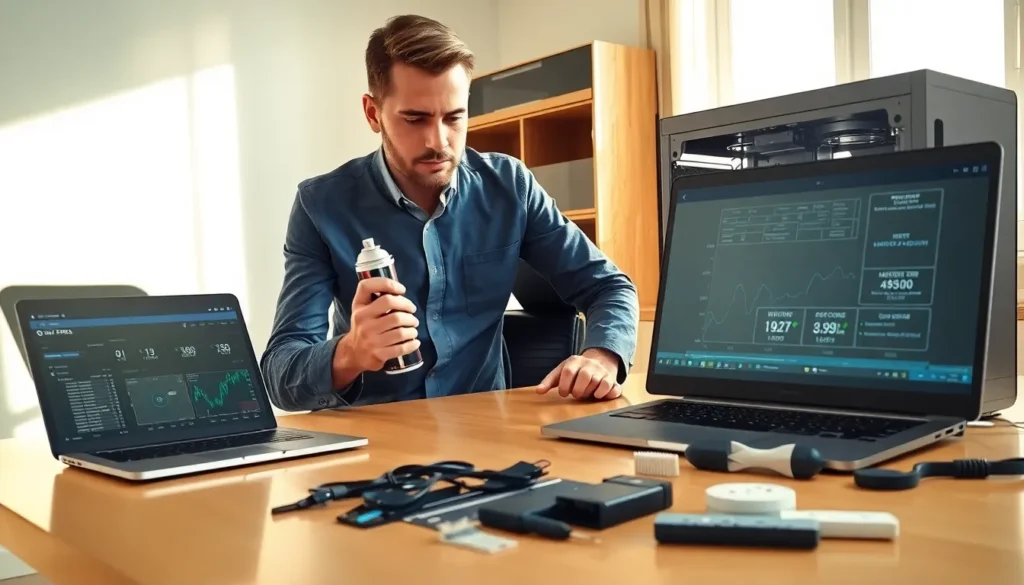
One of the most effective hardware tips is to clean the system every three to six months. Users should power down the computer, unplug it, and open the case. A can of compressed air works well for blowing dust out of heatsinks, fans, and tight spaces. For stubborn buildup, a soft brush can help dislodge particles.
Fan blades deserve special attention. Dirty fans spin harder to move air, which increases noise and wear. Holding each fan blade still while cleaning prevents the motor from spinning backward, which can damage it.
Air filters, if the case has them, should be removed and cleaned regularly. Some users rinse them with water and let them dry completely before reinstalling. This simple step reduces how much dust enters the system in the first place.
Placement matters too. Computers on carpet or near pets collect dust faster. Elevating the case or placing it on a hard surface can make a real difference. These hardware tips cost nothing but can add years to a system’s lifespan.
Monitor System Temperatures Regularly
Heat is the enemy of electronics. CPUs and GPUs generate significant warmth during operation, and without proper cooling, they throttle their performance or sustain damage. Monitoring temperatures is one of the smartest hardware tips for any user.
Free software like HWMonitor, Core Temp, or Open Hardware Monitor displays real-time temperature readings. Users should check these during idle periods and under load, while gaming, rendering, or running intensive applications.
What counts as safe? Most CPUs run comfortably between 30°C and 70°C under normal use. During heavy workloads, temperatures up to 85°C are generally acceptable, though lower is always better. GPUs follow similar patterns, with many modern cards tolerating temperatures up to 83°C before throttling.
If temperatures run high, several fixes exist. Reapplying thermal paste between the CPU and its cooler can restore proper heat transfer. Thermal paste dries out over time, reducing its effectiveness. A fresh application every few years helps.
Improving case airflow is another solution. Adding intake fans at the front and exhaust fans at the rear creates positive pressure that pushes cool air over components and forces hot air out. These hardware tips keep temperatures in check and performance consistent.
Upgrade Components Strategically
Throwing money at hardware doesn’t guarantee better performance. Smart upgrades target bottlenecks, the components limiting overall speed. This is where hardware tips can save users from wasted spending.
RAM is often the first consideration. Systems with 8GB or less may struggle with modern applications and multitasking. Upgrading to 16GB or 32GB provides noticeable improvements for most users. Before purchasing, they should check their motherboard’s maximum supported RAM and ensure compatibility with existing sticks.
Storage upgrades deliver dramatic results. Replacing a traditional hard drive with an SSD transforms boot times and application loading. NVMe drives offer even faster speeds for users whose motherboards support them. This single change often produces the most noticeable improvement in daily use.
GPU upgrades benefit gamers and creative professionals. But, users must verify their power supply can handle the new card’s requirements. A 500W power supply won’t properly run a GPU that demands 350W on its own.
CPU upgrades are trickier. Newer processors often require new motherboards, which may also require new RAM. Sometimes building a new system makes more financial sense than upgrading piecemeal. These hardware tips help users spend wisely and avoid compatibility headaches.
Practice Proper Cable Management
Messy cables inside a computer case do more than look bad, they restrict airflow. Tangled wires block the paths that cool air needs to travel, forcing fans to work harder and temperatures to rise.
Good cable management is one of those hardware tips that pays dividends over time. Users should route cables behind the motherboard tray when possible. Most modern cases include cutouts and tie-down points for this purpose.
Velcro straps or zip ties keep bundles neat. Grouping cables by destination, all front panel connectors together, all storage cables together, makes future maintenance easier. When users need to swap a component, they won’t have to untangle a nest of wires.
Modular power supplies simplify cable management significantly. They allow users to connect only the cables they need, reducing clutter. Non-modular units come with every cable permanently attached, which means extra wires that serve no purpose.
SATA cables deserve attention too. Flat cables with right-angle connectors take up less space and route more easily than rounded cables. Small changes like this improve airflow and make the interior look cleaner. These hardware tips benefit both cooling and ease of access.
Protect Your Hardware With Surge Protection
Power surges can destroy expensive components in an instant. Lightning strikes, grid fluctuations, and even appliances cycling on and off create voltage spikes that travel through electrical lines. Without protection, these surges reach computer hardware directly.
A surge protector is essential, and one of the most overlooked hardware tips. Users should choose a protector with a joule rating of at least 1,000. Higher ratings absorb more energy before failing. Some models include indicator lights that show when protection has worn out.
Uninterruptible power supplies (UPS) offer even better protection. They include surge protection plus battery backup. When power cuts out, a UPS gives users time to save work and shut down properly. This prevents data corruption and reduces stress on hardware components.
Not all power strips are surge protectors. Many cheap strips offer no protection at all, they simply provide extra outlets. Users should read labels carefully before purchasing.
Phone and ethernet lines can also carry surges into a system. Higher-end surge protectors include ports for these connections. Protecting all entry points ensures complete coverage. These hardware tips guard against damage that warranties often don’t cover.


